We are here to help.
Do you have a question about the functionality you need?
A chat with our safety specialists will help.
Contact Us Today To Get Your First 30 Days FREE!
Cancel anytime. No strings attached.
Ready To Get Started?
Contact Us Today To Get Your First 30 Days FREE!
Cancel anytime. No strings attached.


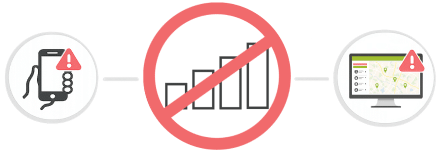
Connection Monitoring will notify the user, administrators and emergency contacts when the My Safety Buddy app has lost connection with the My Safety Buddy server.
This provides users with greater confidence and situational awareness by alerting them when connectivity is lost, enabling them to take appropriate steps to maintain their safety in areas with limited mobile or Wi-Fi reception.

My Safety Buddy supports both individual user accounts and shared user accounts.
For rotating teams, shared user accounts simplify access and remove the need to create separate user profiles.

Accounts are protected by 256-bit AES encryption, with all data securely hosted in Australia, ensuring compliance with Australian data sovereignty and privacy laws.
Turn on Multi-factor Authentication (MFA), enforcement of complex passwords, and Single Sign-On (SSO) for even stronger account security.

Highly flexible account structure with User Groups that can be organised by role, location, or function; administrator permissions that can be assigned at the different levels; and Master and Child Accounts enabling larger organisations to manage multiple business units.

A cost-effective, flexible solution where emergency alarms are sent directly to your internal emergency contacts.
You may add as many Emergency Contacts per user as you like. When an alarm is activated, alerts are sent as automated voice calls, SMS and email direct to each of your Emergency Contacts.
My Safety Buddy gives you the flexibility to choose where your your alerts are sent:

Our support team is in Australia.
Even though My Safety Buddy is simple to use, there are going to be questions from time to time.
All support queries are responded to in less than one business day.

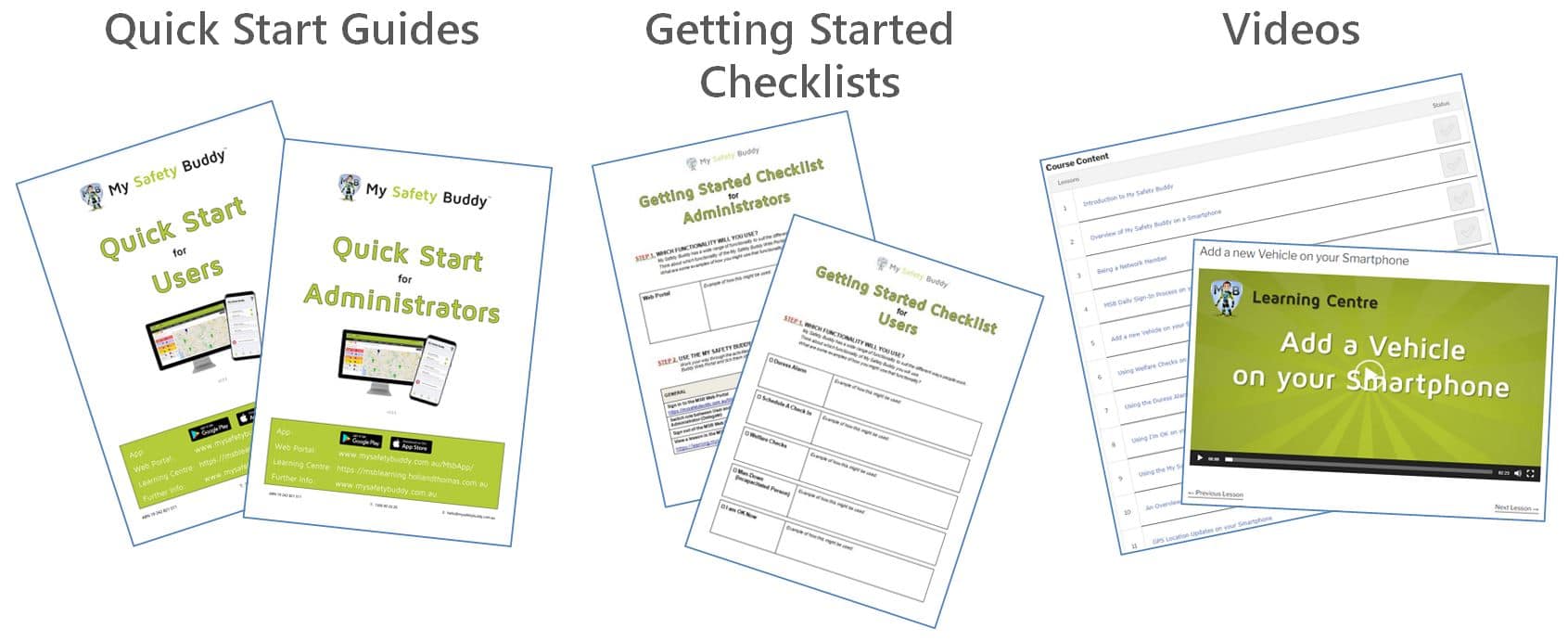
There are comprehensive self-help resources for users who wish to learn a little or a lot about My Safety Buddy.
These include:
o A series of short videos that explain the various features of My Safety Buddy.
o Getting Started Checklists for users and administrators.
o Quick Start Guides for users and administrators.

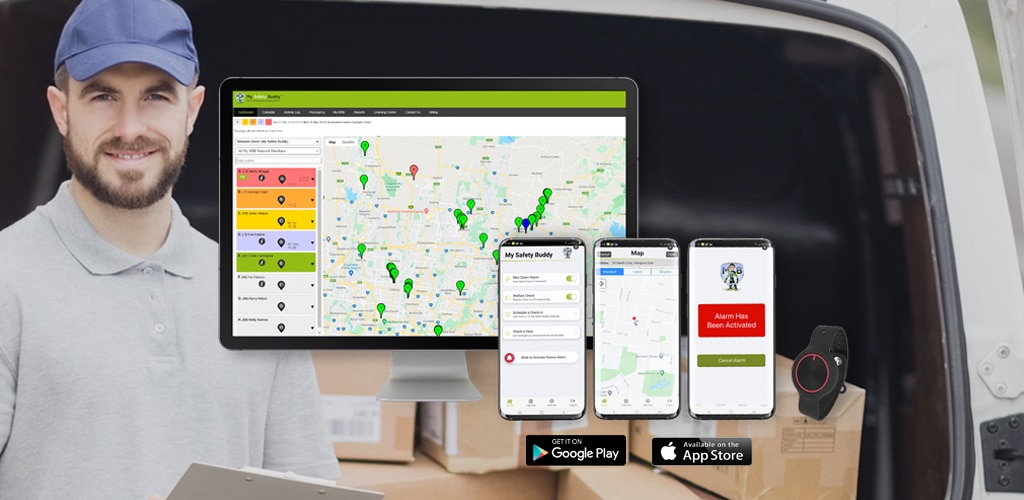
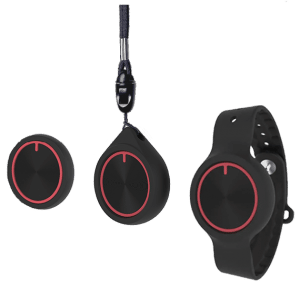
The wearable duress buttons can be carried discretely in a pocket, worn on the wrist, or worn around the neck as a pendant.
The wearable duress buttons use a Bluetooth connection to the My Safety Buddy app. They are lightweight (the size of a 50 cent coin) and waterproof (IP66).
The wearable duress buttons are an optional add-on.

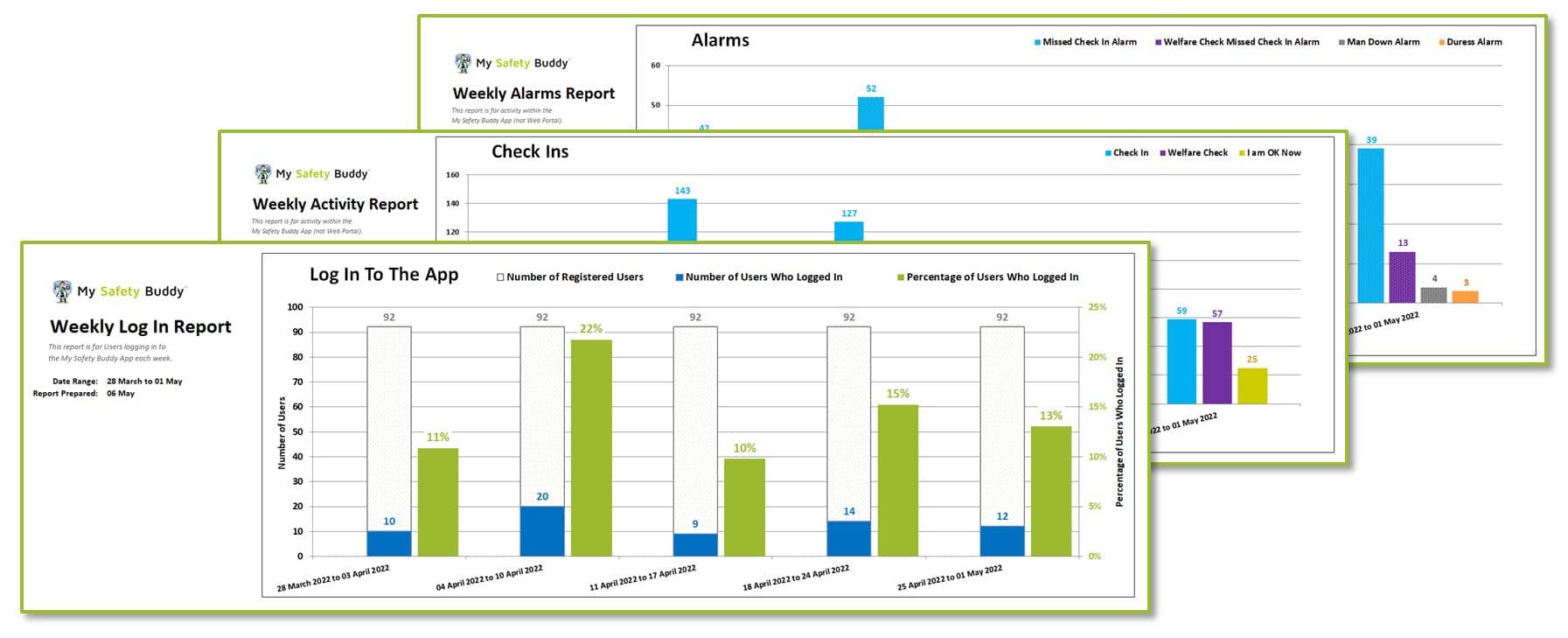
Comprehensive reporting on logins and user activity so you can see who is using My Safety Buddy and how they are using it.
Use the reporting dashboard and the detailed reports to monitor the activity of your users.

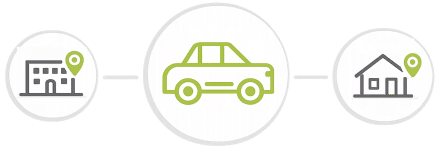
Use My Safety Buddy to improve user safety on longer drives.
Manage driver fatigue, monitor the safety of the user along their journey, and know they arrived safely at their destination.

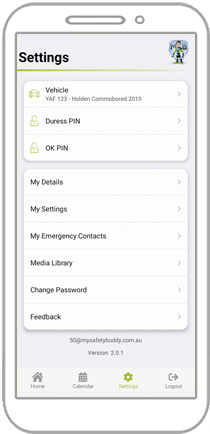
My Safety Buddy’s settings have been designed to be fully customisable.
This is due to the hugely varying nature of lone and isolated work and the unique needs of each organisation.
Administrators can hide any functionality that their staff do not use in order to simplify the user experience.
Administrators can also lock the settings of their users to control how My Safety Buddy is used by their team.

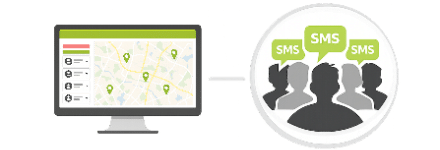
Easily send messages by SMS from the Web Portal to one, some, or all of the users in your My Safety Buddy account.

The Web Portal gives you easy-to-use tools to manage and support your users.
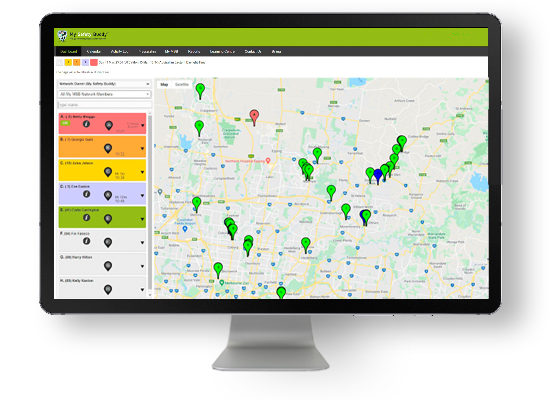
The Dashboard can assist your response to emergency situations with GPS locations shown on the map.
You can access the Dashboard and Web Portal from devices with an internet browser (desktop / laptop / tablet).

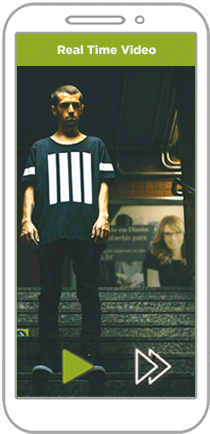
Video and/or audio recording will activate in an emergency to ensure your Emergency Contacts have access to as much information as possible to assist you.
The video can be used to verify the alarm is not a false alarm, to assess the severity of the situation, and provide evidence for subsequent investigations or legal proceedings.

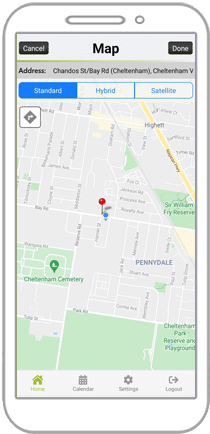
Users can set whether My Safety Buddy will send GPS Location Updates throughout the day, only when an Emergency Alarm is triggered, or not at all.
However Josie, who is concerned about her privacy, chooses to set My Safety Buddy to only send a GPS Location Update if she activates an Emergency Alarm.

Alarms can be sent to My Safety Buddy’s 24/7 Grade A1 Monitoring Service giving you peace of mind that every alarm will be responded to using state of the art technology by a trained Australian operator no matter what.
My Safety Buddy gives you the flexibility to choose where your your alerts are sent:

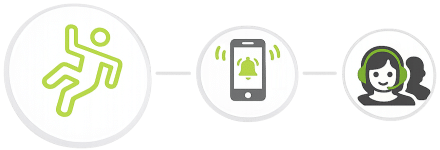
If My Safety Buddy does not detect any movement from your smartphone for a certain period of time, eg. 10 minutes, it will ask if you are OK.
Your Emergency Contacts will then be notified if you do not confirm you are OK.
Eg. While using strong chemicals a lone worker is over powered by the fumes and collapses. My Safety Buddy detects a period of no movement and asks if the worker is OK. The worker fails to check in so My Safety Buddy alerts their Emergency Contacts for them.
*Timings are customisable.

Welfare Checks are check ins that are generated automatically by My Safety Buddy at routine intervals as set by the user such as every hour, every 2 hours etc.
*Timings are customisable.

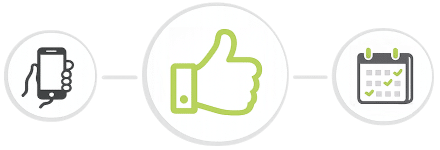
Set up Check Ins throughout your day. If you miss a Check In your Emergency Contacts will be alerted.
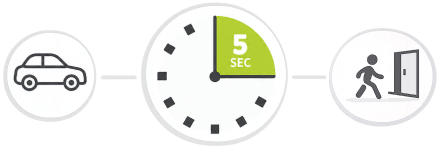
At the time of each Check In, you will be prompted to check in by an on screen message. It only takes 5 seconds to complete a Check In!
Eg. A staff member schedules a Check In for the end of a visit at a client’s home. At the end of the visit they are prompted to check in to let their Emergency Contacts know they are safe.

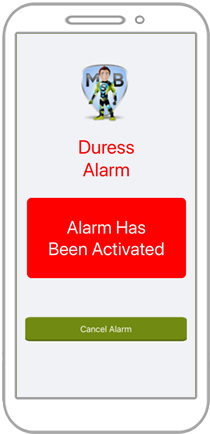
Simply shake your phone to activate the emergency Duress Alarm. You can choose whether video or audio will be recorded and sent to your Emergency Contacts.
The emergency Duress Alarm can be activated by:
To avoid false alarms you can adjust the activation shake sensitivity. You can also choose to have a brief opportunity to cancel the alarm prior to your Emergency Contacts being notified.
Eg. A staff member is in the home of a client when a family member becomes aggressive. The staff member simply shakes their phone to activate the Duress Alarm in order to alert their Emergency Contacts immediately.